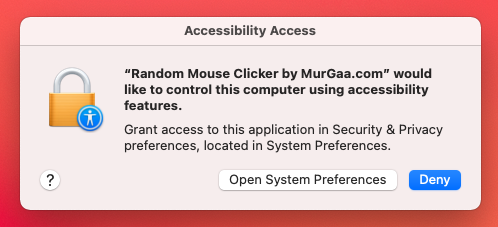
Provide Permission to Click
Use the Permission Helper to Provide it Required Permission.
The Permission is stored in Security & Privacy => Privacy => Accessibility
This Software Requires you to Provide Permission to Click.
At Startup it Launches a Screen to Help you Provide it Permission.
You can also Launch the Permission Helper Screen from Permission Button at the Top of the Software.
- Open System Preferences
- Click on Security & Privacy
- Now Navigate to Privacy Tab (Visible at Top Right Corner)
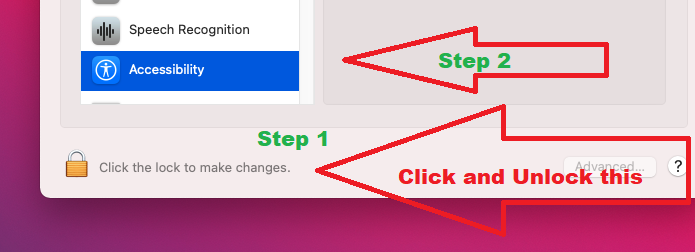
- Now Click on Accessibility on the Left (Visible at Bottom Left Corner)
- Now Click on Lock and Unlock with your Password
- Now Click on + Button and Select an App
- Now you can Close the Screen. For Demonstration of Complete Procedure, Watch 2nd Way to Add Required Permission from the link above.
Note : In case you have Provided it the Required Permission and it is Still Not Clicking, Follow Given below procedure to Fix it.
- Open Settings of your Mac.
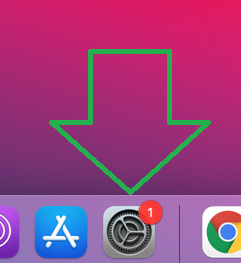
- Click on Security & Privacy

- Navigate to Privacy Tab.

- Now from the Left Hand Side Navigation, Click on Accessibility.
- Now in the Right Hand Side List of Applications, Select this Software and Click on Minus Button to Remove the Permission Provided.
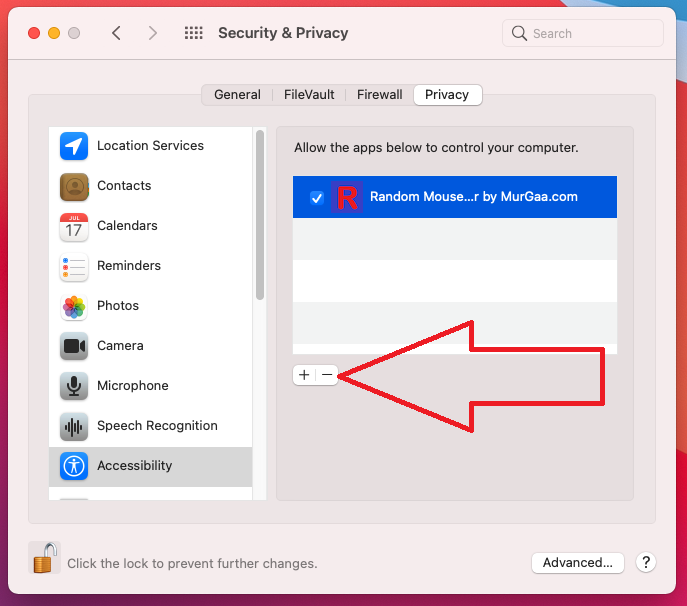
- Now Launch the Permission Helper as Displayed in the Screenshot at the Top Right Hand Corner of this Page and Click on Check Permission Again and Follow OnScreen Prompts.
Another Mac OS X Automation Utility is available for Download at Macro Recorder for Macintosh which allows you to Record and Playback Mouse and Keyboard Actions.
You can write to us at
support@murgaa.com
for any issues / concern or in case you do feel that any other related feature should
have been implemented in the software. Download more Mac Automation Software Utilities.